Showing posts with label Samsung Q1. Show all posts
Showing posts with label Samsung Q1. Show all posts
Sunday, April 27, 2008
Egalax TouchKit Driver for Linux
On the Egalax website is a link to a Debian Linux Touchkit driver like shows up on Sambutu in windows. Shouldn't this be compatible with Ubuntu? I think I've hit the Nooobie Wall. I've tried following the instructions and installing everything on my system but nothing happens. The touchscreen is recognized by default in Hardy but I'm having a hard time getting it calibrated. Can anyone help me figure this out? Thanks!


Hardy Herron Wifi Issue
I finally got Hardy Herron running on Sambutu, but I have more issues than I had with Gutsy Gibbon. First, off the Wifi driver didn't work. It worked fine under 7.10. I found these instructions posted by Andrew Straw:
For what it's worth, here's a list of steps I did to get the madwifi drivers working in Hardy:
{{{
# remove all linux-restricte
sudo apt-get install build-essential
sudo rmmod ath_pci
sudo rmmod ath_hal
sudo rmmod wlan
wget http://
tar xvzf madwifi-
cd madwifi-
make
sudo make install
# reboot to reset the ethernet hardware.
}}}
Saturday, April 26, 2008
This is an important bit for Touchscreen setup
Annlyle.com doesn't cover this bit about running the callibrator program in enough detail:
2. Obtain calibration utility binary from www.nextabyte.com/support/touchscreen (you want the file named “calibrator”). There's a good pdf how-to document in the directory you may also want to grab.
3. Open a terminal and type Look for the item with the name “Touchkit Touch.” In the line with the word “Handlers” note the output (for me it read: Handlers=mouse1 event2 ts1).
4. Select the calibrator program on your desktop and right click on it. Select Properties. Click the Permissions tab and click the checkbox “Allow executing file as program.”
5. Open a terminal and navigate to where the calibration program is found (e.g., cd /home/bill/Desktop for me). Type (where eventX = the event number identified in step 3 above. For me it was event2.). The calibration program should run and present you with bulls-eyes in each of the four corners of the screen. Tap the pulsating top left hand bulls-eye, then the top right hand, then bottom left and bottom right. The calibration program will end and in the terminal will be four sets of numerical coordinates for the screen representing minX, maxX, minY, maxY.
The calibration program will modify your xorg.conf file with a new section as follows:
If the calibration program does not work for you, you can simply copy this section and paste it into your xorg.conf file at the very end.
• Note: the section snippet above contains my tweaked resolution values and not the original values returned by executing the calibration program. I found the calibration program values were a good starting point, but I needed to adjust the values slightly to achieve the best results. Getting the touchscreen calibration just right is a trial and error process.
• Make sure to restart X by hitting Ctrl Alt Backspace after each change to see the results.
• Note: In the section: Option “Device”, I changed the line to read • Note: In the “Option ‘SwapY’” section, I had to replace “0” with “1” in order for my touch calibration settings to track properly.
The calibration program will also insert the following line at the top the section: Section “Server Layout”
If you want to use the pointer mouse along with being able to use the touchscreen, then this line should read as above. If you don’t want to use the mouse pointer but only the touchscreen, change the line to I found that with the setting “SendCoreEvents”, the touchscreen would work, but it wasn’t as smooth as when “CorePointer” was the setting. I found that the touch pointer was somewhat erratic, but it did work. If you do not need the mouse pointer, then you may want to set this line at the “CorePointer” setting.
The calibration program also modified the section of xorg.conf called:
Section “Input Device’” for my mouse. I had to change the line to read:
6. So that I wouldn’t have to use the keyboard to log in to Ubuntu each time it started (helpful if you are operating in slate mode without the keyboard attached), I went to System>Administrator>Login Window. After typing in your password, click on the Security tab. Check the box “Enable Automatic Login.” In the User drop-down, select your username.
7. To enable Ubuntu’s silk keyboard for tapping keyboard input without an attached keyboard, I went to System>Preferences>Accessibility>Assistive Technology Preferences. Under On-screen keyboard, click the checkbox “Start on-screen keyboard at log in.” The keyboard will appear as Ubuntu is loaded. You can resize the keyboard and click the Minimize button to minimize it. There will be an icon in the upper task bar that you can click or touch to bring up the keyboard when you need it, like when typing in a web address when surfing the Net while in bed.
Ubuntu 7.04 has come a long way. I can remember when the major challenge for me in getting Ubuntu properly configured on a laptop was wireless networking. With this release, my wireless card was detected and worked right out of the box. We can only hope that with successive releases, the vexing challenges of touchscreens will become less problematic.
Thanks to wmadan
2. Obtain calibration utility binary from www.nextabyte.com/support/touchscreen (you want the file named “calibrator”). There's a good pdf how-to document in the directory you may also want to grab.
3. Open a terminal and type
Code:
cat /proc/bus/input/devices
4. Select the calibrator program on your desktop and right click on it. Select Properties. Click the Permissions tab and click the checkbox “Allow executing file as program.”
5. Open a terminal and navigate to where the calibration program is found (e.g., cd /home/bill/Desktop for me). Type
Code:
sudo ./calibrator /dev/input/eventX
The calibration program will modify your xorg.conf file with a new section as follows:
Code:
Section "InputDevice"
 Identifier "touchscreen"
 Driver "evtouch"
 Option "Device" "/dev/input/event2"
 Option "DeviceName" "touchscreen"
 Option "MinX"  "82"
 Option "MinY"  "3900"
 Option "MaxX"  "3960"
 Option "MaxY"  "195"
 Option "SwapY"  "1"
 #Option "SwapXY" "1"
 Option "ReportingMode" "Raw"
 Option "Emulate3Buttons"
 Option "Emulate3Timeout" "50"
 Option "SendCoreEvents"
EndSection
• Note: the section snippet above contains my tweaked resolution values and not the original values returned by executing the calibration program. I found the calibration program values were a good starting point, but I needed to adjust the values slightly to achieve the best results. Getting the touchscreen calibration just right is a trial and error process.
• Make sure to restart X by hitting Ctrl Alt Backspace after each change to see the results.
• Note: In the section: Option “Device”, I changed the line to read
Code:
Option "Device" "/dev/input/mice"
The calibration program will also insert the following line at the top the section: Section “Server Layout”
Code:
InputDevice "touchscreen" "SendCoreEvents"
Code:
InputDevice "touchscreen" “CorePointer”
The calibration program also modified the section of xorg.conf called:
Section “Input Device’” for my mouse. I had to change the line to read:
Code:
Option "Device" "/dev/input/mice"
7. To enable Ubuntu’s silk keyboard for tapping keyboard input without an attached keyboard, I went to System>Preferences>Accessibility>Assistive Technology Preferences. Under On-screen keyboard, click the checkbox “Start on-screen keyboard at log in.” The keyboard will appear as Ubuntu is loaded. You can resize the keyboard and click the Minimize button to minimize it. There will be an icon in the upper task bar that you can click or touch to bring up the keyboard when you need it, like when typing in a web address when surfing the Net while in bed.
Ubuntu 7.04 has come a long way. I can remember when the major challenge for me in getting Ubuntu properly configured on a laptop was wireless networking. With this release, my wireless card was detected and worked right out of the box. We can only hope that with successive releases, the vexing challenges of touchscreens will become less problematic.
Thanks to wmadan
Starting out Fresh with Sambutu
I couldn't get the Ubuntu 8.04 upgrade to load via Upgrade Manager. I downloaded the alternate CD with the Upgrade on it and tried upgrading with that too. I got stuck at the same place. I ended up rebooting and trying to do a clean install from the alternate CD but I kept getting errors. So, next I just install 7.10 again. After I run all the updates, I click on the ugrade to 8.04 button in the upgrade manager. This time it seems to be working just fine. I plugged Sambutu into a 19" LCD monitor so I wouldn' t have to deal with chopped off dialogue boxes during the install. Is that cheating? I'm glad I made all these posts about the touchscreen. I'll be revisiting that after I get 8.04 running.
Friday, April 25, 2008
Where are the Mobile Versions of Linux UI?
I'm a total Linux Noob but my ultimate goal with the Sambutu project is to install some sort of Mobile Linux on the device to fully take advantage of the touchscreen experience. I keep Googling, but I can't seem to find any way to download an alternate UI for my Ubuntu installation that is more mobile friendly. Is that possible? Can anyone help me find it? Thanks!
Hardy Heron Hardly Here...
 This is as far as I get trying to install the upgrade from Ubuntu 7.10 to the new 8.04 through Update Manager on Sambutu. I'm guessing the servers are still getting slammed with people upgrading. I realize there are other ways to get the upgrade. I just really want this way to work.
Thursday, April 24, 2008
Upgrading from Gutsy to Hardy
Just got back from a quick trip to the lake and I remembered that it's Thursday. No, it's not Scone Day, but today is the day that Ubuntu 8.04 "Hardy Herron" is released. Since I already had Ubuntu 7.10 "Gutsy Gibbon" installed on Sambutu upgrading to the new version is as simple as running the update manager and installing the upgrade. It's loading now. I give Ubuntu credit for two things: clever naming and easy installation. That's so cool that I can just run update manager from my existing install. I wish Windows and OSX were that easy (even if I had to pay during the process).
UPDATE: Well, not so fast there. Looks like their servers are getting hammered and the update is going nowhere after restarting it several times. Maybe I need to give it a rest. :(
UPDATE: Well, not so fast there. Looks like their servers are getting hammered and the update is going nowhere after restarting it several times. Maybe I need to give it a rest. :(
Tuesday, April 22, 2008
Dealing with 800x480 Screen Issues in Linux
Q1 owners know all about the problem of dialogue boxes not fitting properly on a 800x480 screen in Windows. The same problem occurs in Linux. See Screenshot: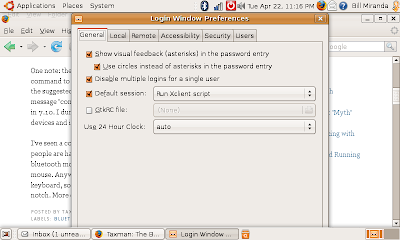
Over at answers.launchpad.net I found a solution to this problem in Ubuntu Linux. In Linux, you can move a window by holding the ALT key and using the mouse to move the window. A problem is that Linux by default won't let you move the top of the window above the visible screen. However, you can turn this default off by making the following change:
In terminal type:

Over at answers.launchpad.net I found a solution to this problem in Ubuntu Linux. In Linux, you can move a window by holding the ALT key and using the mouse to move the window. A problem is that Linux by default won't let you move the top of the window above the visible screen. However, you can turn this default off by making the following change:
In terminal type:
gconf-editor
Then go to :
apps
—>compiz
——>plugins
———>move
————>allscreens
—————>options
Unselect constrain_y and from now on you can move pages up and down freely by holding ALT button. At least I can navigate on windows
Thanks to sonefe for providing this solution. Apparently, it works on the EEE PC too.
Making Progress with Sambutu
Sambutu is my Samsung Q1 running Gutsy Gibbon Ubuntu 7.10. I'm typing this message on Sambutu using the Thinkoutside Stowaway bluetooth keyboard. I was able to get my computer to recognize the bluetooth keyboard. Although, it wasn't without a bit of trial and error and it involved typing in the terminal.
I found instructions on setting up a bluetooth mouse and keyboard in the ubuntu forums
Here's a screenshot of the Bluetooth preferences panel:

You'd think it would be a matter of launching the bluetooth preference control panel, telling the computer to accept the connection and boom! But no, I had to type in the terminal commands listed in the link above. You'll notice that the screenshot shows that the computer recognized my Targus bluetooth mouse too, but it actually doesn't work. I've got more work to do on that.
One note: the instructions in the link say that you have to type a command to restart the bluetooth system. When I tried to type in the suggested command, the terminal came back with an error message "command not found". Maybe this command isn't needed in 7.10. I dunno. Anyway, I ran the next command to scan for devices and it found both the mouse and the keyboard.
I've seen a couple of notes in the forum suggesting that other people are having problems connecting this particular Targus bluetooth mouse to their Linux computer so maybe it's just this mouse. Anyway, I've got touchscreen working and the bluetooth keyboard, so my Linux experience on Sambutu is up another notch. More on this story as it develops.
I found instructions on setting up a bluetooth mouse and keyboard in the ubuntu forums
Here's a screenshot of the Bluetooth preferences panel:

You'd think it would be a matter of launching the bluetooth preference control panel, telling the computer to accept the connection and boom! But no, I had to type in the terminal commands listed in the link above. You'll notice that the screenshot shows that the computer recognized my Targus bluetooth mouse too, but it actually doesn't work. I've got more work to do on that.
One note: the instructions in the link say that you have to type a command to restart the bluetooth system. When I tried to type in the suggested command, the terminal came back with an error message "command not found". Maybe this command isn't needed in 7.10. I dunno. Anyway, I ran the next command to scan for devices and it found both the mouse and the keyboard.
I've seen a couple of notes in the forum suggesting that other people are having problems connecting this particular Targus bluetooth mouse to their Linux computer so maybe it's just this mouse. Anyway, I've got touchscreen working and the bluetooth keyboard, so my Linux experience on Sambutu is up another notch. More on this story as it develops.
I see why they call it "Myth" TV...
My project for last night didn't go so well. I wanted to see if I could watch TV on "SamButu" my Ubuntu Linux Samsung Q1 (original flavor). I have this hybrid analog/digital USB tuner stick from Hauppage called the WinTV HVR 950 that says it works with Linux. I also found that a project called Myth TV should allow me to watch and even record TV shows using my usb TV stick. In Ubuntu, it seems that one goes about implementing Myth TV by installing a program called Mythbuntu . This Mythbuntu provides a dizzying array of options to configure a machine as a "front end" or a "back end" or a "desktop" or a combo of two or three of the above. I've linked to three different sets of instructions in this post for how one is supposed to go about installing the device and the Mythbuntu package. Mythbuntu didn't show up as a "supported application" when I tried to use the add/remove menu on my desktop to install it. However, it did show up when I changed the search setting to "all open source applications".
This post isn't the last word on this subject but it didn't go well. I'm not sure that my computer ever actually recognized the USB stick properly and after deciding to install frontend, backend and desktop, plus a movie player, plus a bunch of codecs, I got a nice screen that looked like a Tivo but I couldn't watch anything.
It was fourth and long (US football reference) so I decided to send in the punting team to remove Mythbuntu. Why? Because now when my machine boots up and shuts down it says "Mythbuntu" instead of "Ubuntu" -- a nagging reminder of my failure to figure out Linux. It had to go. Guess what? I couldn't just uncheck Mythbuntu in the add / remove menu! No! I had to use something called the Synaptic Package Manager to remove it. I thought synaptic was an adjective that Matt Miller used to describe the keyboard on the new HTC Advantage. I'm not sure what that has to do with Linux. Nothing said how one goes about removing Mythbuntu using this mysterious synaptic application, but I saw a search window, I typed in "mythbunutu", some stuff came up in results, I marked them for removal, and hit the button that said "apply." I think it's gone now. At least I removed enough of it so that it no longer mocks me when I reboot. I'm not finished with you Mythbuntu! I'll be back!
Monday, April 21, 2008
Sierra Wireless working with Linux
Not that this is news, but it is new to me. I just tried using my Ubuntu Q1 with my Sierra Wireless 875U Aircard USB modem. When I plugged it in, nothing happened. No "We found new hardware dialogue", nothing. So, I went to the Google Machine and typed in "Sierra 875U Linux" and got a link to this helpful tutorial
I installed a program called KPPP and followed the instructions for configuring the modem. A few minutes later, I was connected. I still am. I'm using it to write this post.
I installed a program called KPPP and followed the instructions for configuring the modem. A few minutes later, I was connected. I still am. I'm using it to write this post.
Sunday, April 20, 2008
Gutsy Gibbon Up and Running
 OK, so I don't know how to take a decent screenshot. I managed to get Ubuntu version 7.10 (Gutsy Gibbon) up and running on my Samsung Q1. I'm typing this post on it now. After much tweaking and re-reading of the instructions I posted in an earlier post, I got the touchscreen working. The callibration isn't perfect, but it's good enough for onscreen navigation and light text entry using the on-screen keyboard.
 I installed the matchbox keybard because it's smaller than the onscreen keyboard that is installed by default. I'm still playing around with that. Mostly, however, I'm keeping the Q1 in the Samsung organizer case and using the USB keyboard/mouse.
I'm not sure that I plan to keep Linux on this device long term, but all this talk about the HP Mini and the EEE PC got me interested in having a Linux experience. If you have some pointers or stuff I should try out, please leave me a comment or catch me on Twitter at Taxman45.
Friday, April 18, 2008
Samsung Q1 and Linux
I'm not using the Samsung Q1 with the Celeron processor as a primary computer any more. In fact, I almost sold it. All this talk of the EEE PC, the HP Mini Note, and MIDS got me to wondering about the feasibility of using Linux in a small companion device. I haven't had any experience with Linux before, so not that tax season is over, I figure it's time to do some experimentation with the Samsung Q1.
I started with some great instructions:
Annelyle.com
and
Have a Peek
and some words of encouragement from Kevin Tofel and Thoughtfix
Installation of Ubuntu 7.10 went well. I chose to wipe out the entire XP installation and go all Linux on this box for now. I connected the Samsung USB Keyboard/Mouse for the install and afterwards WIFI and the 800x480 screen resolution worked right out of the box. Not working? Touchscreen! I didn't really plan on inking or handwriting on the Q1 with Linux, but I hope to be able to use touch to enter onscreen keyboard input or make menu selections. According to the links above, it can be done. I just haven't figured out how!
This all brings up the point about why Linux hasn't caught on more (IMHO). When I first started working with PC's back in 1984, everything was entered at the command line, but Windows and OSX have spoiled me and it's been a long time since I had to type commands at a prompt to do something on a computer. Lately, I've been learning a bit of UNIX command stuff to use in Terminal on the Mac, so that was a good start. But, LINUX is going to remain a niche product if consumers have to type commands at a prompt in 2008. At least that's my opinion.
Well, I'll report more later on this experiment of taking a fully functional Windows XP tablet computer and turning into a quasi-functional Linux MID. Who said things have to make sense!
I started with some great instructions:
Annelyle.com
and
Have a Peek
and some words of encouragement from Kevin Tofel and Thoughtfix
Installation of Ubuntu 7.10 went well. I chose to wipe out the entire XP installation and go all Linux on this box for now. I connected the Samsung USB Keyboard/Mouse for the install and afterwards WIFI and the 800x480 screen resolution worked right out of the box. Not working? Touchscreen! I didn't really plan on inking or handwriting on the Q1 with Linux, but I hope to be able to use touch to enter onscreen keyboard input or make menu selections. According to the links above, it can be done. I just haven't figured out how!
This all brings up the point about why Linux hasn't caught on more (IMHO). When I first started working with PC's back in 1984, everything was entered at the command line, but Windows and OSX have spoiled me and it's been a long time since I had to type commands at a prompt to do something on a computer. Lately, I've been learning a bit of UNIX command stuff to use in Terminal on the Mac, so that was a good start. But, LINUX is going to remain a niche product if consumers have to type commands at a prompt in 2008. At least that's my opinion.
Well, I'll report more later on this experiment of taking a fully functional Windows XP tablet computer and turning into a quasi-functional Linux MID. Who said things have to make sense!
Monday, September 24, 2007
FS: Samsung Q1 Needs a New Home

For sale for $600 + shipping in US only, a Samsung Q1 (900MHZ Celeron) that I have upgraded to 2GB RAM. The deal also includes the keyboard and organizer case. I have an extra 3-cell battery that I will throw in that was the original battery that came with the unit. It doesn't hold a charge for more than about 1 hour, so Samsung sent me a replacement battery that also is included with the unit. I have a Samsung Powerbank 9-cell battery that I've been using. However, I've noticed that the insulation is coming off the cord that connects the battery to the unit. I don't recommend that you use this without getting it repaired.
I've used this Q1 for a little over a year and it in working condition. I purchased the 3-year performance plan when I bought the Q1 in July 2006 and it is transferable to the buyer. I have the original receipt and paperwork. If you are interested, please leave a comment on how I can get in touch with you. Only buyers in the USA please.
Why am I selling? I subsequently purchased a new MacBook as my main notebook so the Q1 isn't seeing much playing time, plus I've decided to keep the HTC Advantage. So, please do me a favor and give my Q1 a new home!


Subscribe to:
Posts (Atom)